 US log in
 UK log in
Yield report
How much of the billable time recorded on each matter has been billed, and what is still unbilled.
What this report answers
How much of your recorded billable time makes it onto an invoice? The billed hours rate follows the hours by the date you did the work. The table shows where each matter's billable, non-billable and written-off time sits.
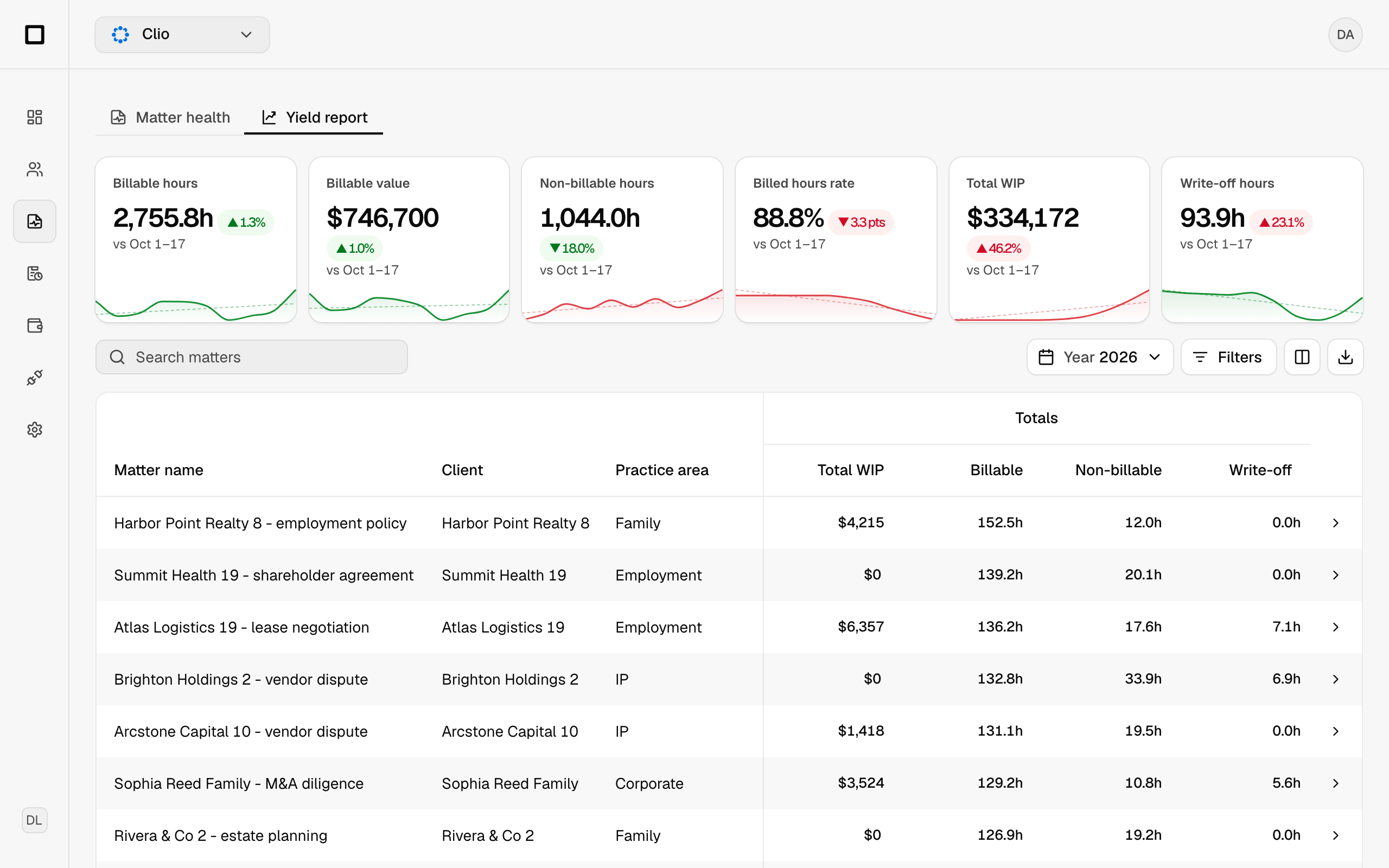
Billed hours rate shows the share of billable hours that reached an invoice.
Year chooses the year for the matter table.
Cards
The cards show this month to date and compare it with the same days last month. The year above the table applies only to the table. See Report periods.
Billable hours
Adds chargeable hours by work date, including hours already invoiced.
Billable value
Adds the recorded value of those hours. Ten billable hours recorded at $200 an hour have a billable value of $2,000.
Non-billable hours
Adds hours recorded as non-billable by work date. Two hours of non-billable work alongside ten billable hours appear here as two hours.
Billed hours rate
Divides the billed hours from the period's work by the billable hours recorded in that period. If six of those ten billable hours reached an invoice, the rate is 60%. The two non-billable hours do not enter the calculation. A period with no billable hours has no rate.
Total WIP
Shows the closing balance of unbilled chargeable time and expenses, including work carried forward. If four hours at $200 remain unbilled and there are $100 of unbilled expenses, WIP is $900. See Report terms.
Write-off hours
Adds the duration of time entries marked as written off, using the date of the work.
The table
Open Columns to show Billable, Non-billable and Write-off for individual months. These columns start hidden. For the current month you can also show Current month WIP, the portion of today's WIP from work dated this month. On a phone, Client and Practice area also start hidden.
Filters, dates and exports
Select Year for the table's annual hours. Total WIP in the table uses the current unbilled balance even when you look at an earlier year's hours. Use Search matters or Filters to narrow the rows by client, practice area, matter status or matter health.
The Excel export uses the selected year, search, filters and sort order. It includes the available months even when their columns are hidden on screen.
Common questions
Why does the billed hours rate differ from Clio or Smokeball?
An invoice issued in March can include work you did in February. An invoice-date report counts those billed hours in March. Yield uses the February work when calculating February's rate. See Why numbers differ.