 US log in
 UK log in
Connect Clio Manage
Connect Clio Manage, approve access in Clio and follow the first sync.
Before you start
Sign in to dashboardWISE as the firm owner or with the Manage integrations permission. Have your firm's Clio Manage sign-in ready.
Find Clio Manage in Integrations
Open Integrations. The card below shows an existing connection.
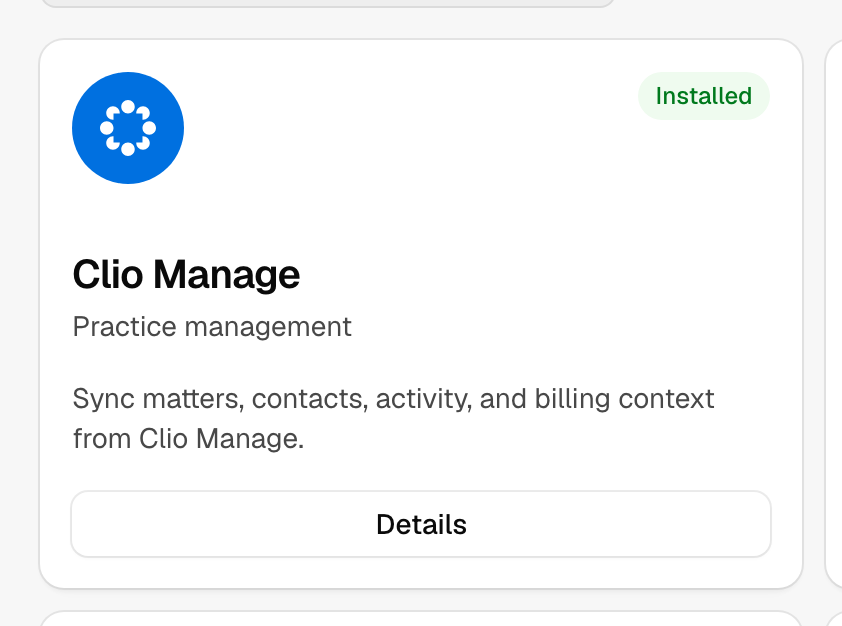
Clio Manage is the card to use. When it shows Available, select Connect. If it already shows Installed, open Details to check the connection.
Approve access in Clio
Sign in to Clio with the account for the firm you want to connect. Review the access request and approve it to return to dashboardWISE.
Check the connection
Open Integrations → Clio Manage → Details.
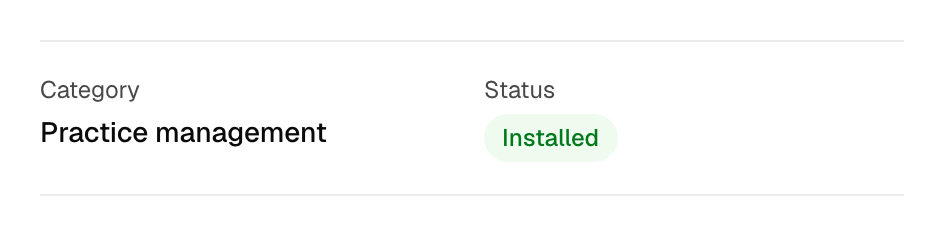
Status shows Installed once Clio Manage is connected. To check whether its first data update has finished, open Settings → Syncs.
If your firm uses contingency billing and dashboardWISE asks you to choose forecast fields, finish that setup so the first sync can start.
If something goes wrong
I see View only
Your dashboardWISE role can see integrations. Ask your firm owner or someone with Manage integrations to connect Clio Manage.
The card says Deleting data
dashboardWISE is clearing data from a previous connection. Wait until the card shows Available before you reconnect.
The card says Installed but my reports are empty
The first update may still be queued or running. Check Settings → Syncs → Latest run. See Syncs and data updates for each status and what to do next.