 US log in
 UK log in
Sign-in and security
Turn on two-step sign-in with an authenticator app and manage your account.
Before you start
You need access to the inbox for your dashboardWISE account. On the sign-in screen, enter your Work email and choose Continue. Enter the six-character code from your email within 10 minutes. If you have already set up an authenticator, enter its six-digit code next.
Any signed-in member can manage their own sign-in settings. To add an authenticator, have your authenticator app ready.
Add an authenticator to your account
Open Settings → Security.

Set up opens the authenticator dialog. Choose Start setup, then scan the QR code with your authenticator app or enter the setup key. Enter the six digits the app shows and choose Enable authenticator app.
Use Copy or Download to save your recovery codes somewhere you can reach if you lose access to the app. To turn the extra step off later, open Manage, enter an authenticator or recovery code and choose Disable authenticator app.
End a session on another device
Open Settings → Account. A session is a sign-in that still gives a device access to your account.
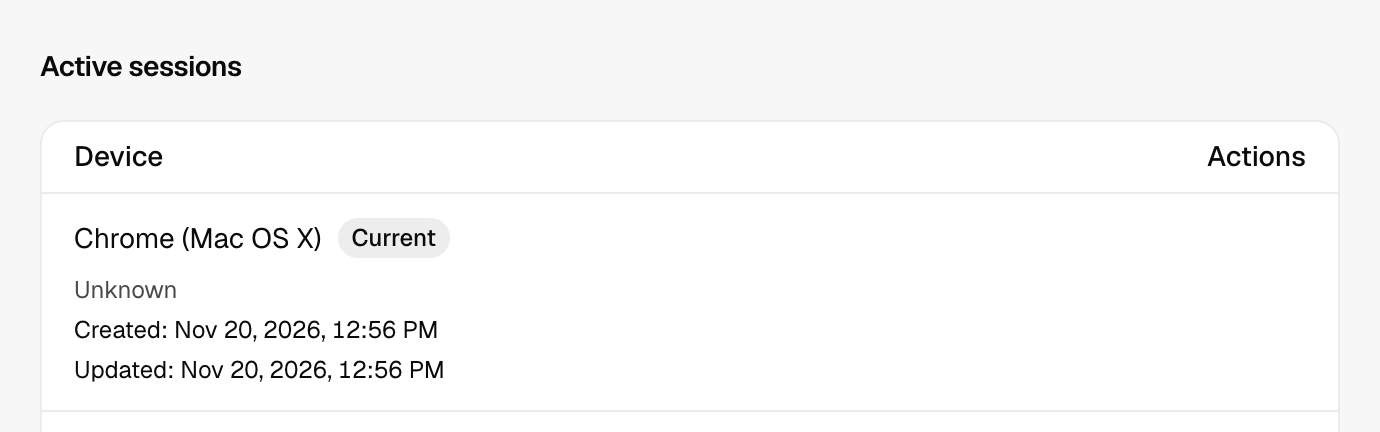
Current marks the session you are using now. Every other session has Revoke beside it: select it, then confirm, and that device has to sign in again.
To end your current session, use Log out on the same page.
If something goes wrong
My email code expired
Choose Resend code on the sign-in screen. If the address shown is wrong, choose Change email first.
I no longer have my authenticator
After the email step, choose Use a recovery code and enter one of your saved codes.