 US log in
 UK log in
Set up fee earners
Give each fee earner a type, working hours and targets so utilization and targets are right.
Before you start
Set up each fee earner before relying on utilization or target figures. If someone works three days and their profile assumes five, the reports count two extra days of available hours and targets each week. Their work can look further behind than it is.
You need hourly reporting and Manage work profiles permission. Owners, partners and managers have this permission by default. Managers can edit their own profile and those of people on teams they manage. Have each person’s working days, hours per day, billable hours target and start date ready.
Find the fee earner
Open Settings → Fee earners → Work profiles. Search for the person by name, email or job title.
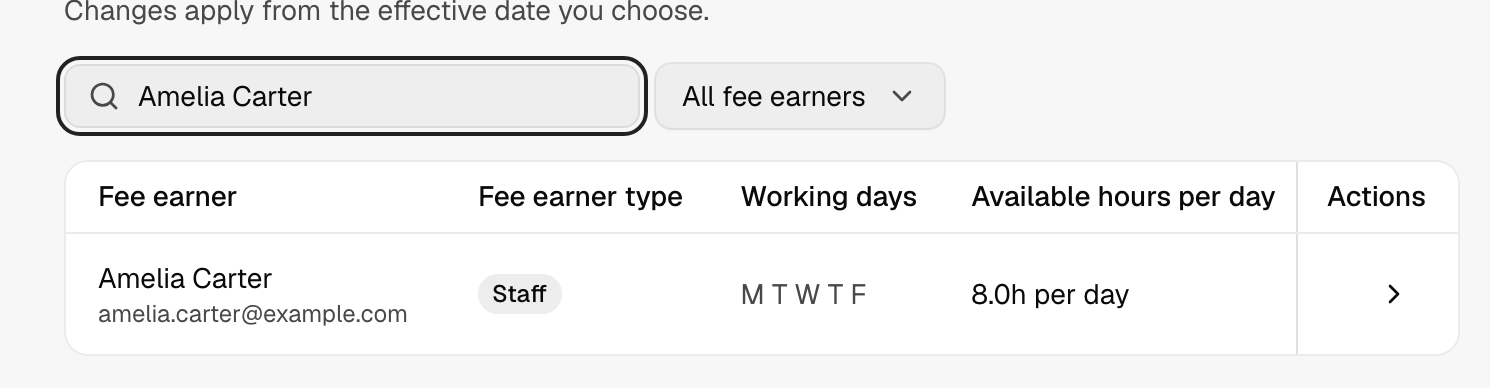
Actions contains the arrow at the right of each row. Select it beside the person whose schedule you want to change.
Set the schedule and targets
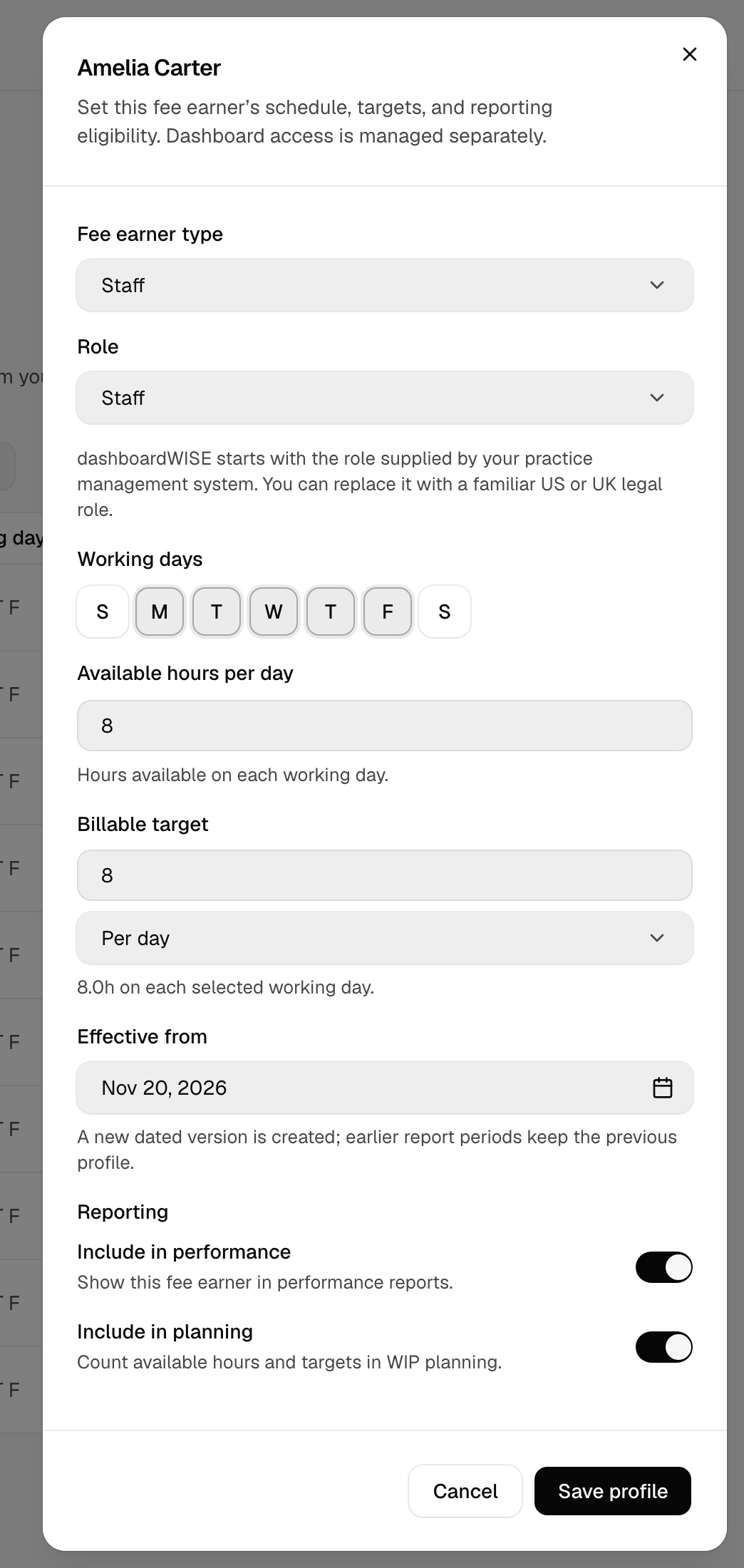
Fee earner type groups the person for reporting. For example, select Staff for a staff member so they appear when you filter for that type, then use Role for their job title. To change what they can access in dashboardWISE, use Invite your team.
Working days sets which days count toward capacity and targets. Select the days this person usually works.
Available hours per day sets capacity on each selected day. With three eight-hour days, the week has 24 available hours. In Work in progress, 18 billable hours divided by 24 available hours gives 75% utilization.
Billable target sets the hours you expect them to record as billable. Choose Per day, Per week, Per month or Per year. A weekly target of 18 hours across three days means six hours on each working day.
Effective from sets the first day the new schedule applies. Earlier periods keep the previous profile.
For monthly targets, dashboardWISE multiplies by 12 to get an annual target. It divides annual targets by 52, then divides the weekly total across the selected working days. For example, 130 hours per month and 1,560 hours per year both give 30 hours per week, or six hours per day on a five-day schedule.
Under Reporting, turn on Include in performance to show the person in Fee earner performance. Turn on Include in planning to count their available hours and targets in work-in-progress planning. Select Save profile.
What happens next
Fee earner performance compares billable hours with the target for working days in the selected period, after leave or other target adjustments. For example, if leave reduces a 30-hour target by six hours, 18 billable hours meets 75% of the adjusted 24-hour target.
The report calculates the billable value target from those adjusted hours and the fee earner’s billable rate. At $200 per hour, a 24-hour adjusted target gives a $4,800 value target. Recording $3,600 in billable work meets 75% of that value target.
If something goes wrong
I see “No matching fee earners”
Clear the search and the fee earner type filter. Check that you have selected the practice management system that supplies this person.
The target has not changed for last month
Check Effective from. A schedule starting this month applies from that date onward. Check Include in planning if the person’s hours or targets are missing from planning totals.