 US log in
 UK log in
Firm and reporting settings
Set your firm's details, time zone and reporting options.
Before you start
Owners and partners have access to firm and reporting settings by default. If your firm uses custom roles, Manage firm settings lets you edit the firm profile. Manage performance reporting covers performance targets and matter health. Manage report notifications gives access to the weekly brief.
Have the firm’s contact details and reporting time zone ready. The sections under Reporting depend on your permissions and billing method.
Set firm details and the reporting day
Open Settings → Firm.
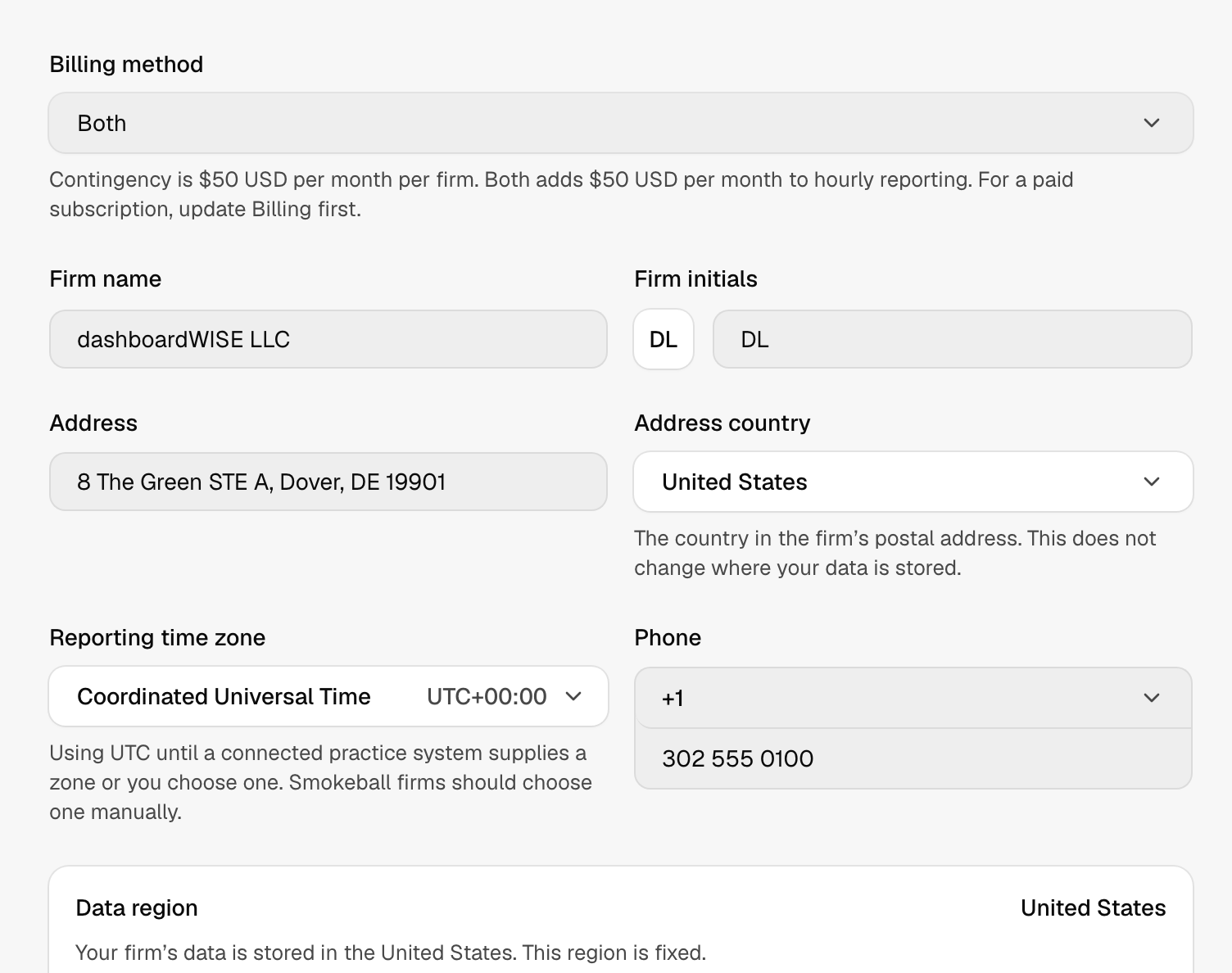
Billing method determines which reports apply. Choose Hourly, Contingency or Both. For a paid subscription, update Billing first.
Firm name and Firm initials identify the firm. You can also change the logo beside the initials and update Address, Address country and Phone. The Data region shown below the form is fixed.
Reporting time zone sets the local day for timestamped activity and the month for revenue. Select the firm’s zone, then select Save changes.
For example, 1:00 a.m. UTC on February 1 is 8:00 p.m. on January 31 in New York. A timestamp at that moment belongs to January in a New York report. See Report periods for how reports compare dates.
dashboardWISE can import the zone from Clio. Saving your own choice overrides that zone. Until a zone is supplied, reports use UTC. For Smokeball, choose the zone manually.
Set firm-wide performance benchmarks
Open Settings → Reporting → Performance. This tab applies to hourly reporting.
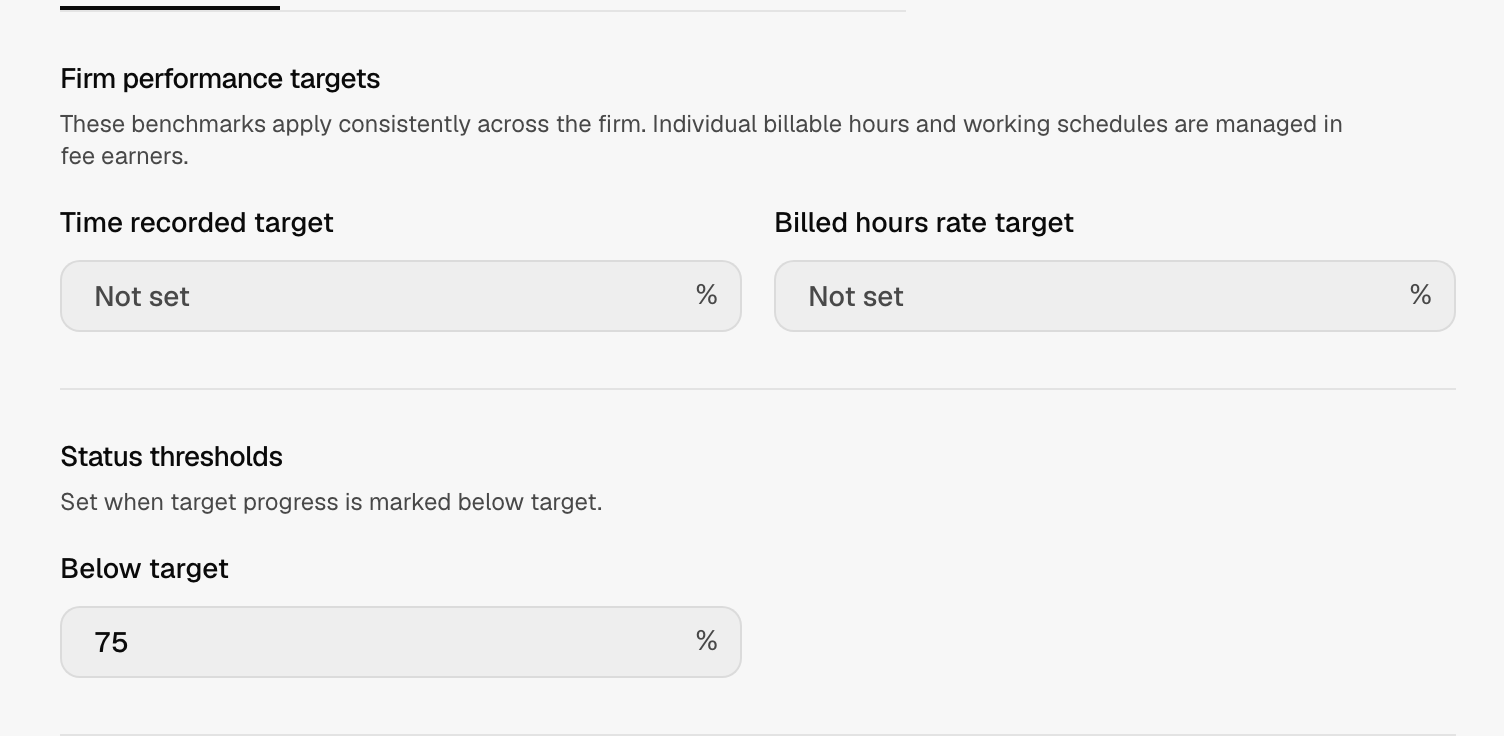
Time recorded target sets the percentage benchmark for utilization.
Billed hours rate target sets the percentage benchmark for how much billable time gets billed. For example, billing 15 of 20 billable hours gives a billed hours rate of 75%.
Below target sets the boundary for marking a day as behind on the billable target calendar. Select Save changes after editing the percentages.
To change one person’s hours, select Manage targets. Their working days and billable hours target belong to their dated work profile.
Set matter health thresholds
Open Settings → Reporting → Matter health. The thresholds compare work in progress (WIP), the value of unbilled work, with the matter’s trust balance.
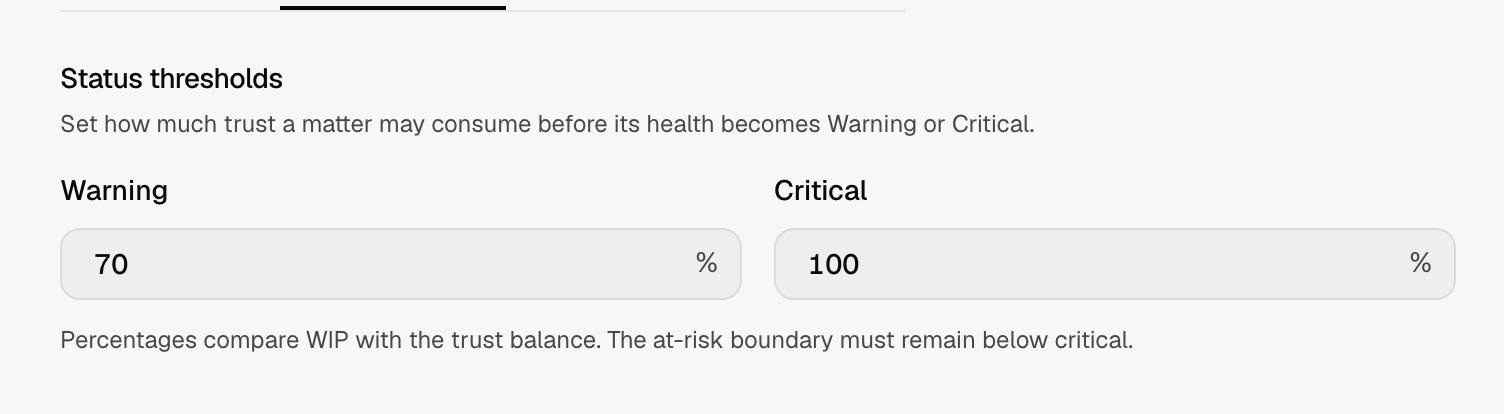
Warning sets the lower threshold. For example, $700 of WIP against $1,000 in trust uses 70% of the balance.
Critical sets the higher threshold. With the same trust balance, $1,000 of WIP uses 100%. Keep Warning below Critical, then select Save changes.
Check the weekly brief
Open Settings → Reporting → Weekly brief.
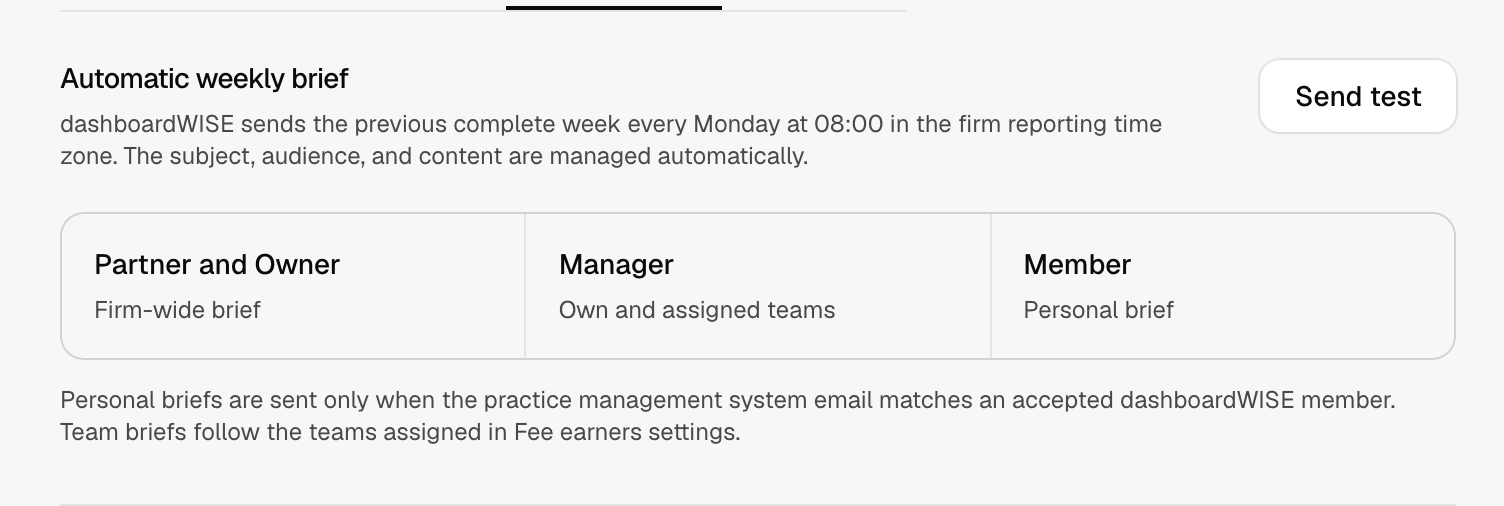
Automatic weekly brief covers the previous complete week. It goes out on Monday at 08:00 in the firm’s reporting time zone.
Send test sends a test email. Under Recent deliveries, you can check the delivery history for the selected practice management system.
Owners and partners receive a firm-wide brief. Managers receive their own and assigned teams’ figures. Members receive a personal brief when their practice management email matches an accepted dashboardWISE member. To change team assignments, open Settings → Fee earners → Teams.
Set cash flow forecast delivery
If your firm uses Contingency or Both and you can view the forecast, open Settings → Reporting → Cash flow.
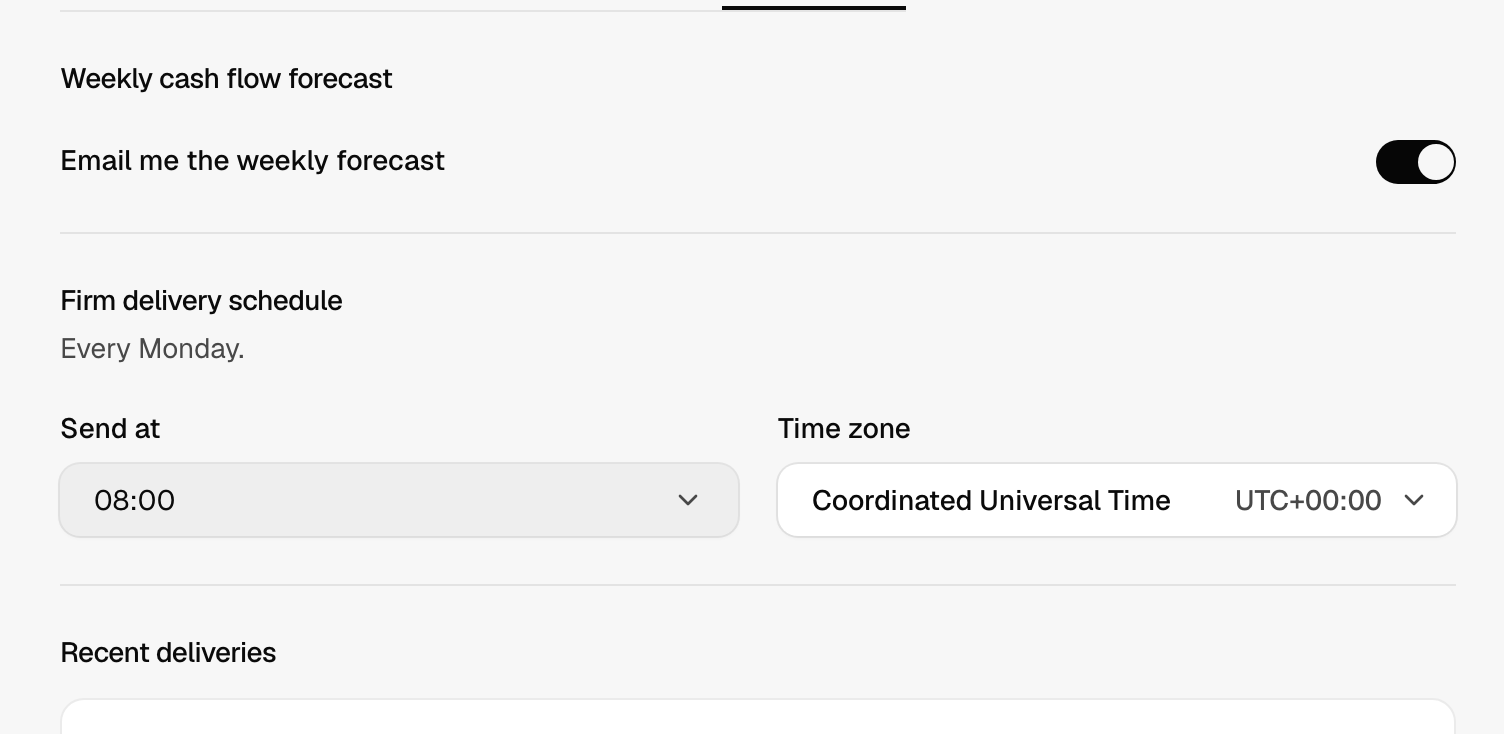
Email me the weekly forecast turns your own Monday forecast email on or off. Your selection saves when you change the switch.
Send at sets the Monday delivery hour for the firm. You need Manage firm settings to change the schedule.
Time zone sets which zone that hour uses. Select Save changes to apply the new schedule. Recent deliveries lists past deliveries.
If something goes wrong
I can see the forecast schedule but cannot edit it
Access to the forecast lets you set your own email preference. Ask someone with Manage firm settings to change the firm’s delivery time.
A reporting tab is missing
Performance, Matter health and Weekly brief appear for hourly reporting. Cash flow appears for contingency reporting. If the firm’s billing method includes the report, ask the owner to check your role’s permissions.