 US log in
 UK log in
Syncs and data updates
How often data updates, what each sync status means and what to do when a sync needs attention.
Before you start
Your firm owner or someone with View integrations can check updates for the selected practice system. You need Manage integrations to request a refresh.
dashboardWISE receives change notifications from your practice system. A connected source also becomes eligible for a scheduled update about an hour after its last successful refresh. A fuller check comes due after seven days. To see when your figures last refreshed, check the successful sync date.
Check the last update
Open Settings → Syncs.
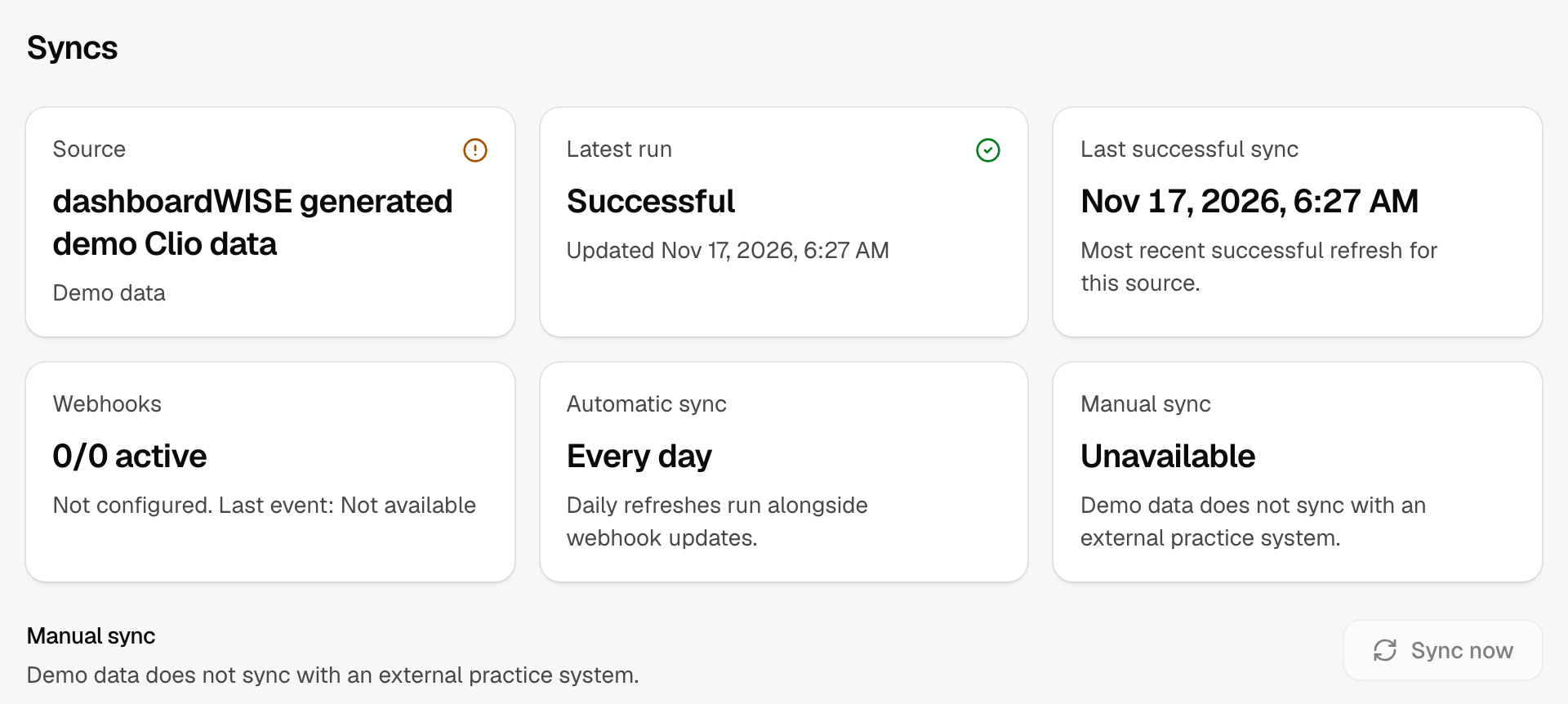
Source names the connection these figures come from. If your firm connects both, pick the other practice system from the menu at the top left of the app (it shows Clio or Smokeball).
Latest run shows how the most recent update ended.
Last successful sync shows when your figures last refreshed.
Automatic sync describes the scheduled updates.
Manual sync says whether you can request a refresh now, and why not if you can't.
Latest run shows the most recent attempt. Last successful sync shows when a refresh last finished successfully. If today's attempt failed, the successful sync can show an earlier date.
Request a refresh
Check Manual sync. When it shows Available, you can request one refresh for this source every 24 hours.
Sync now queues a refresh and opens its progress window. If the button is dimmed, read the reason under Manual sync.
If something goes wrong
Sync needs attention
Read the error in the progress window. This message can follow a failed, partially successful or cancelled update, or a connection that needs renewed access. Check Latest run for the outcome and use the matching action above.
Sync now is unavailable
If Manual sync shows Limited, check the next available time. If it shows Unavailable, check the reason. Your source must be connected, your role must allow manual refreshes, and any active update must finish first.
My integration says Deleting data
Confirming a disconnect removes the credentials dashboardWISE uses to connect, deletes its change notifications and clears your firm's synced data for that provider from dashboardWISE. Wait for deletion to finish before reconnecting. To check an update in progress, use Settings → Syncs.