 US log in
 UK log in
Invite your team
Invite colleagues, choose each person's role and see what each role can open.
Before you start
Have your teammate’s name and the email address they will use to sign in. You need Invite users permission. Owners and partners have it by default.
Enter your teammate’s details
Open Settings → Users → Invite user.
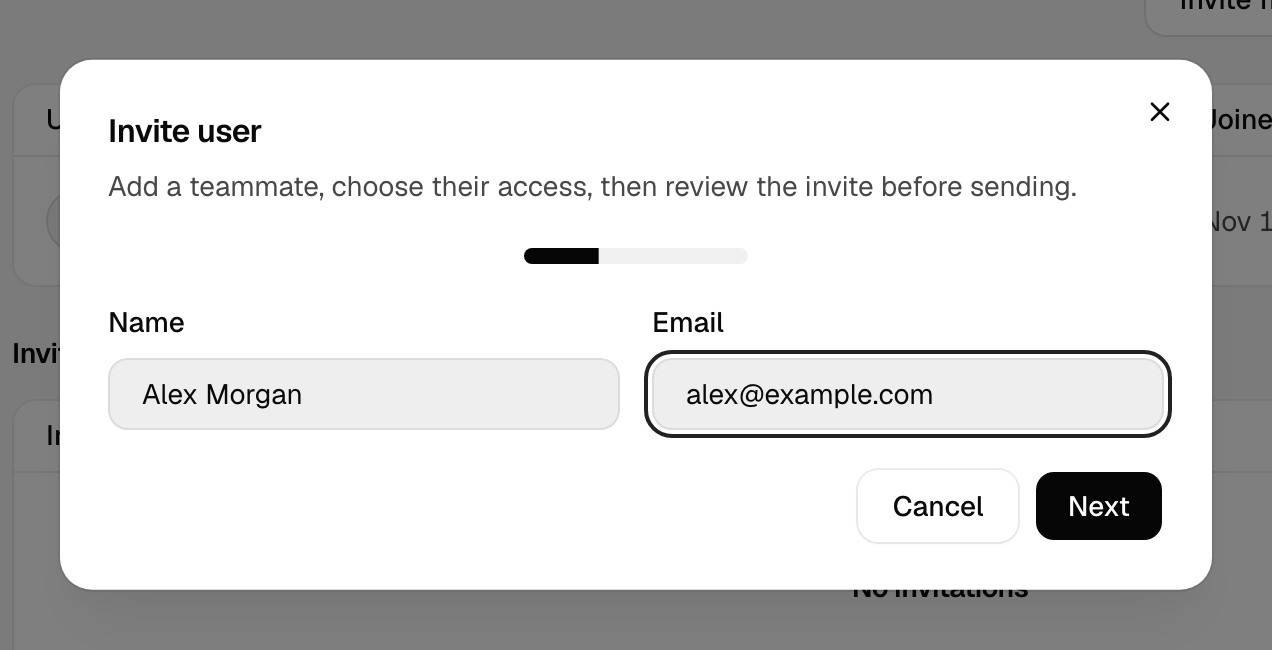
Name is the name of the teammate you want to invite.
Email is where dashboardWISE sends the invitation. Check the address, then select Next.
Choose access and send the invitation
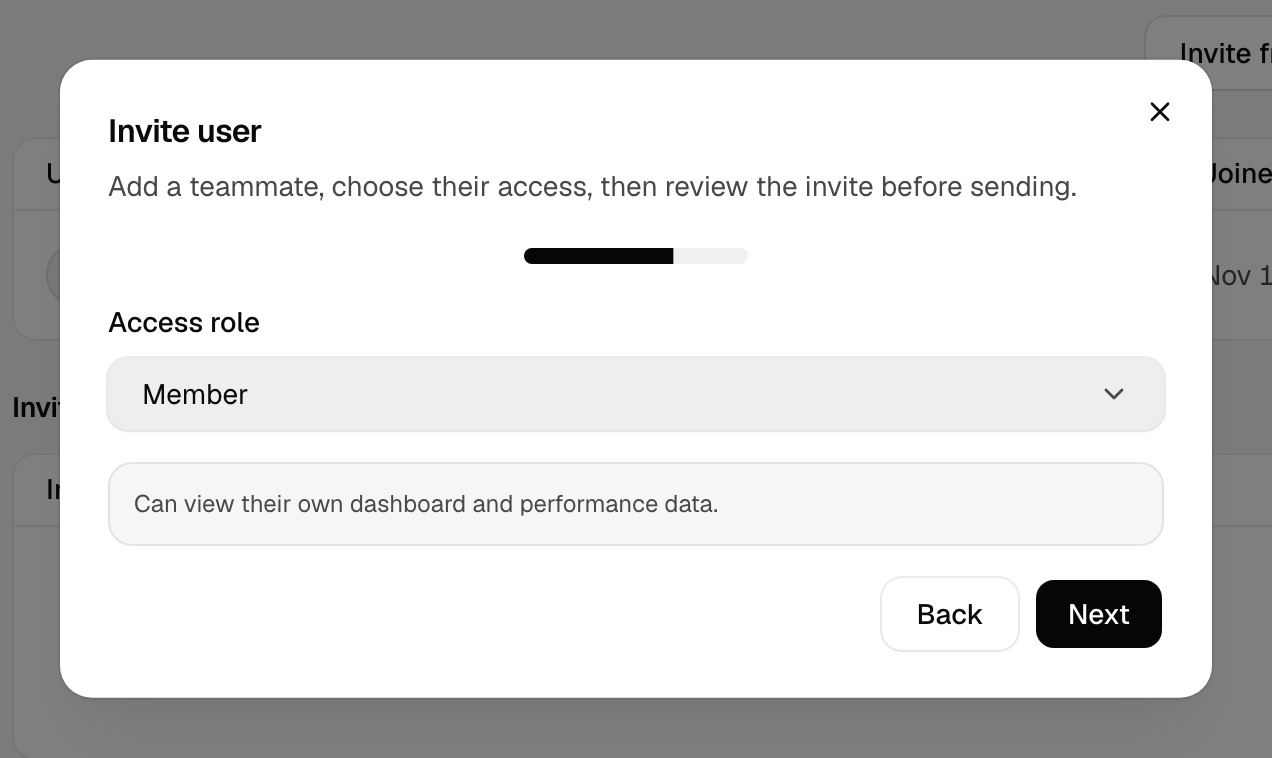
Access role sets the permissions your teammate inherits. Choose a role, then select Next. Check the name, email and role on the review screen before selecting Send invite.
These are the starting permissions. Your billing method determines which reports are available. Someone with Manage roles permission can check the firm’s current permissions under Settings → Users → Access roles.
What happens next
Your teammate receives an email naming the inviter and the firm. They have seven days to select Accept invite. If prompted, they select Sign in to accept and sign in with the invited address. Once the invitation is accepted, dashboardWISE opens the firm’s dashboard.
If something goes wrong
Invite user is unavailable
Being able to view the list of users does not grant permission to invite someone. Ask the owner or a colleague with Invite users to send the invitation.
My teammate sees “You are signed in with a different account.”
The signed-in email differs from the invited address. Select Use invited account, then sign in with the address that received the invitation.