Connect Smokeball
Connect Smokeball from dashboardWISE, approve access in Smokeball, then return to dashboardWISE for the first sync. The connection is read-only: dashboardWISE reads reporting data and does not write practice records back to Smokeball.
Before you start
- Sign in to the dashboardWISE firm you want to connect.
- Make sure you can sign in to Smokeball and approve app access for that firm.
- Your dashboardWISE role must have permission to manage integrations.
If Connect is disabled, ask a firm administrator to review your permissions.
Connect Smokeball
1. Open Integrations
2. Search for Smokeball and click Connect
3. Approve access in Smokeball
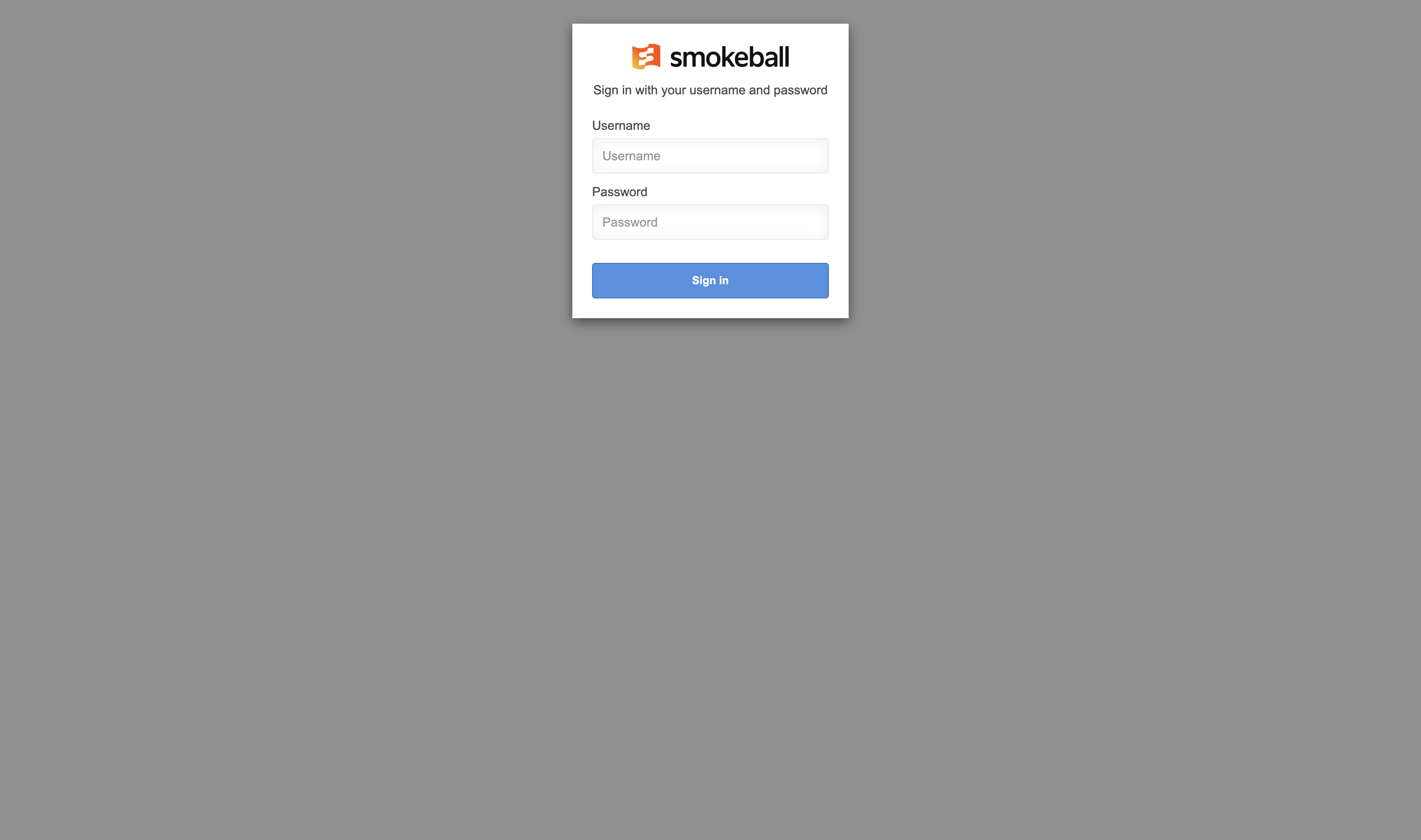
4. Return to dashboardWISE and let the sync finish
After the connection
Once the first sync finishes, dashboardWISE keeps reporting refreshed from Smokeball. Your team keeps working in Smokeball as normal; Smokeball remains the system of record.
Reporting time zone
Smokeball does not currently send a reporting time zone to dashboardWISE. After the first sync, set it in Settings → Firm. Until then, dashboardWISE uses UTC.
Data dashboardWISE reads from Smokeball
- Clients, contacts, and matters
- Staff, matter fees, and activity data
- Matter invoices, fees, and expenses
- Bank accounts and bank transactions
dashboardWISE does not write practice records back to Smokeball. If you disconnect the integration later, dashboardWISE removes the stored connection and starts cleanup of its synced dashboard data. Wait for cleanup to finish before reconnecting the same provider.
Troubleshooting
Connect is disabled
Your dashboardWISE role probably cannot manage integrations. Ask a firm administrator to review your permissions.
Authorization did not complete
Return to Integrations and select Connect again. Make sure you are signing in to the correct Smokeball account and approve the request before returning to dashboardWISE.
The first sync is still running
Larger firms can take longer to import. Keep following the sync progress in dashboardWISE; reporting fills in as the required stages complete.
dashboardWISE says data is still being deleted
A previous disconnect is still being cleaned up. Wait for that process to finish before connecting Smokeball again.